
WordPress makes it easy to start a blog, but managing a successful website requires more than publishing articles. You also need to take care of search engine optimization, website performance, security, backups, spam protection, and visitor experience.
This is where WordPress plugins become useful. Plugins add specific features to your website without requiring you to write code for everything.
However, installing too many plugins can create unnecessary complexity. The goal is not to install every popular plugin. It is to choose reliable tools that solve real problems on your website.
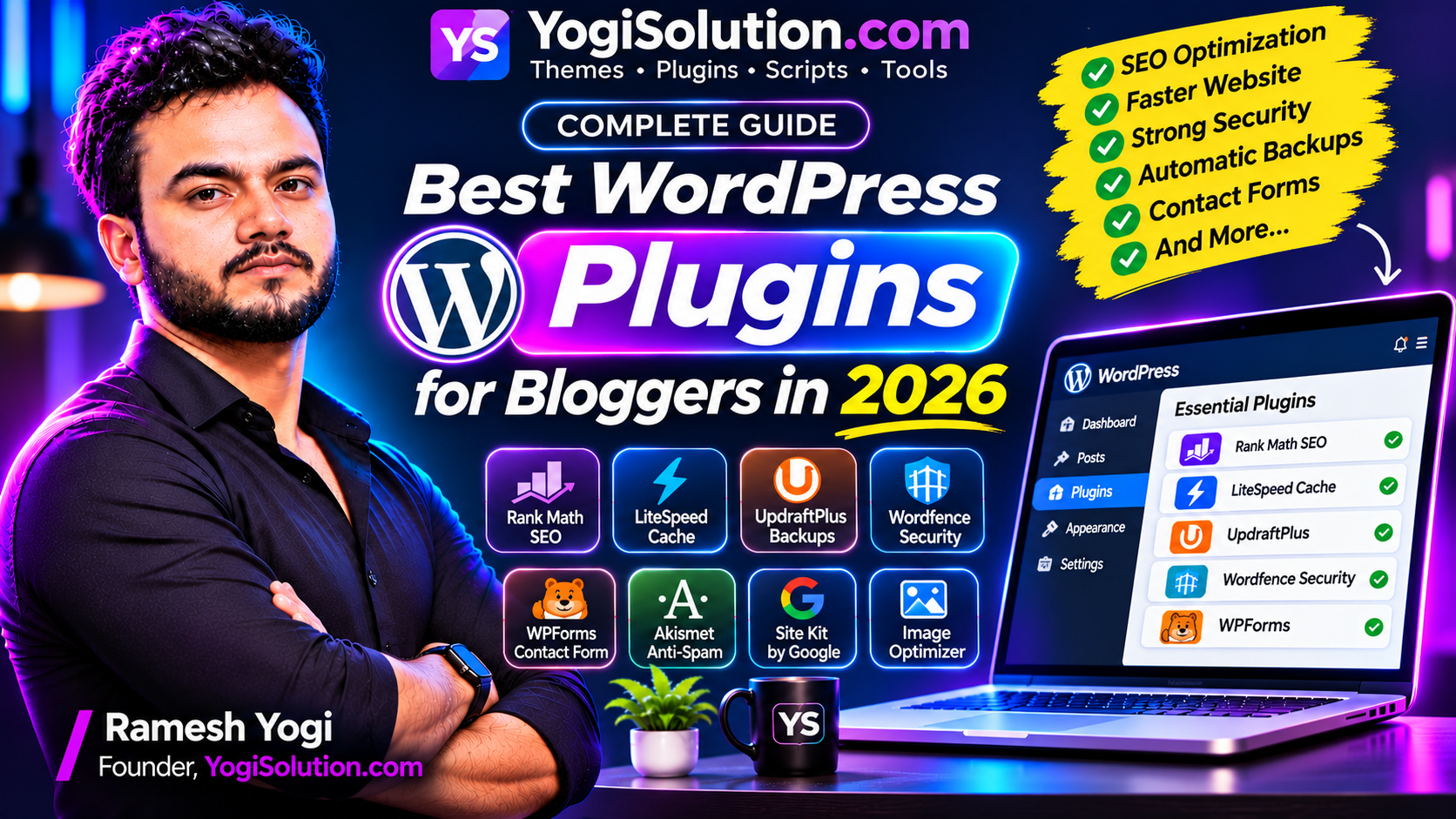
In this guide, we will explore some of the best WordPress plugins for bloggers in 2026, explain what each one does, and help you build a practical plugin setup.
1. Rank Math SEO or Yoast SEO – For Search Engine Optimization
SEO is important when you want readers to discover your blog through search engines.
An SEO plugin helps you manage important website information, including SEO titles, meta descriptions, XML sitemaps, canonical URLs, and structured data features.
Two popular options are:
Rank Math SEO
Rank Math offers features for managing SEO metadata, XML sitemaps, schema markup, redirects, and other optimization settings. It is suitable for bloggers who want several SEO controls in one interface.
Yoast SEO
Yoast SEO provides content analysis, SEO title and description controls, readability guidance, and sitemap functionality. Its interface is designed to help users manage common SEO tasks.
Which one should you choose?
Choose either Rank Math or Yoast SEO. You generally do not need both active on the same website because overlapping SEO features can create conflicts or duplicate metadata.
An SEO plugin can help organize technical settings, but it cannot guarantee higher rankings. Useful content, clear site structure, and a good user experience remain important.
2. LiteSpeed Cache – For Website Performance
Website speed affects how visitors experience your blog. A slow website can make it difficult for readers to open articles, browse categories, and navigate between pages.
LiteSpeed Cache provides caching and performance optimization features, including page caching, CSS and JavaScript optimization, and image-related optimization options.
It is especially useful when your hosting environment supports LiteSpeed server caching.
Before installing it, check your hosting server configuration. Some caching features depend on LiteSpeed server technology or QUIC.cloud services.
If your server uses a different web server, choose a caching solution compatible with your hosting environment instead of assuming every caching feature will work.
Useful setup tips:
- Enable only the optimization features you understand.
- Test your website after changing CSS or JavaScript settings.
- Avoid running multiple page-caching plugins together.
- Measure performance before and after making changes.
3. UpdraftPlus – For Website Backups
A website backup is one of the most important parts of WordPress maintenance.
Updates, plugin conflicts, server problems, accidental deletions, and security incidents can cause data loss. Regular backups help you restore your website when something goes wrong.
UpdraftPlus is a popular backup plugin that can help you create scheduled or manual backups of your WordPress files and database.
Depending on your configuration and plan, backups can be stored in supported remote destinations.
Recommended backup practices:
- Schedule regular database backups.
- Back up website files regularly.
- Store copies away from your main hosting server.
- Keep multiple backup versions.
- Test the restoration process before relying on a backup.
A backup that has never been tested may not be as useful as you expect. Make sure you know how to restore your website.
4. Wordfence Security – For Website Protection
WordPress websites need regular security maintenance.
Wordfence Security offers features such as firewall protection, malware scanning, login security, and security notifications.
It can help website owners monitor suspicious activity and identify potential security issues.
However, installing a security plugin does not replace basic security practices.
Follow these steps:
- Use strong and unique administrator passwords.
- Enable two-factor authentication where available.
- Keep WordPress, themes, and plugins updated.
- Remove unused plugins and themes.
- Use secure hosting and HTTPS.
- Review administrator accounts regularly.
You can consider Wordfence or another reputable security solution based on your hosting setup and requirements. Avoid running multiple overlapping security plugins without a clear reason.
5. Site Kit by Google – For Website Analytics
Understanding your website traffic helps you make better content decisions.
Site Kit by Google is Google’s official WordPress plugin for connecting supported Google services, including Search Console, Analytics, AdSense, and PageSpeed-related information.
It provides a convenient way to access important website insights from your WordPress dashboard.
You can use it to understand:
- How visitors discover your website.
- Which pages receive search traffic.
- How your website performs in Google Search.
- Relevant analytics information.
- AdSense information when properly connected.
Site Kit is optional. You can also configure Google services manually or use other supported integration methods.
6. WPForms or Contact Form 7 – For Contact Forms
Every professional blog should make it easy for visitors to contact the website owner.
A contact form allows readers, potential customers, and business partners to send messages without displaying your email address publicly.
Two options worth considering are:
WPForms
WPForms provides a form builder with a visual interface. It is useful for creating contact forms and other types of forms, depending on the features available in your selected plan.
Contact Form 7
Contact Form 7 is a popular option for creating basic contact forms. It offers a simpler approach for users who are comfortable configuring form fields and settings.
Choose one based on your requirements. After setup, test form submissions and configure email delivery properly.
7. Akismet Anti-spam – For Comment Spam Protection
If your blog allows comments, spam submissions can become a maintenance problem.
Akismet Anti-spam helps identify and filter spam comments and supported form submissions.
Spam protection is particularly useful for websites that receive regular visitors or allow public discussions.
You should still review comments occasionally because automated filters can sometimes make incorrect decisions.
If you do not allow comments, consider whether you actually need a separate comment-spam plugin.
8. An Image Optimization Plugin – For Faster Pages
Images make blog posts more attractive and help explain complex topics. However, large image files can increase page loading time.
Image optimization plugins can help compress images, generate modern formats, or optimize image delivery, depending on the selected tool.
Popular options include:
- ShortPixel Image Optimizer.
- EWWW Image Optimizer.
- Imagify.
Choose one image optimization solution and configure it according to your hosting and image workflow.
You should also optimize images before uploading them:
- Resize images to appropriate dimensions.
- Avoid unnecessarily large image files.
- Use descriptive file names.
- Add meaningful alternative text.
- Choose modern image formats where supported.
Remember that image optimization is only one part of website performance. Your theme, hosting, caching, and third-party scripts also matter.
9. A Table of Contents Plugin – For Long Articles
Long articles can be difficult to navigate, especially on mobile devices.
A table of contents helps readers jump directly to the section they want to read.
You can use a dedicated table of contents plugin or a feature already included in your WordPress theme or block editor setup.
For longer tutorials and detailed guides, a table of contents can improve navigation and make the article easier to scan.
Avoid adding a separate plugin if your theme or existing editor already provides the functionality you need.
10. How Many WordPress Plugins Should a Blogger Install?
There is no fixed number of plugins that every WordPress website should use.
A website with five well-maintained plugins can have problems, while another website with twenty carefully selected plugins may perform perfectly well.
The important factors are plugin quality, compatibility, maintenance, and the amount of work each plugin performs.
For a new blog, start with a small setup:
| Purpose | Suggested Plugin |
|---|---|
| SEO | Rank Math SEO or Yoast SEO |
| Performance | A cache plugin compatible with your server |
| Backups | UpdraftPlus or reliable hosting backups |
| Security | Wordfence or another suitable security solution |
| Analytics | Site Kit by Google |
| Contact form | WPForms or Contact Form 7 |
| Spam protection | Akismet, if needed |
| Image optimization | One suitable image optimization plugin |
You do not need every plugin in this table immediately. Add tools when your website actually needs them.
11. Important Things to Check Before Installing a Plugin
Before installing any WordPress plugin, review its details carefully.
Check the following:
- Last updated date: Prefer actively maintained plugins.
- WordPress compatibility: Check compatibility information for your WordPress version.
- User reviews: Read feedback and look for recurring complaints.
- Support activity: Check whether developers respond to support questions.
- Plugin permissions: Understand what access or data the plugin requires.
- Performance impact: Test whether it affects your website’s speed.
- Feature overlap: Make sure another plugin is not already doing the same job.
Download plugins from trusted sources, such as the official WordPress Plugin Directory or the developer’s official website.
12. Common WordPress Plugin Mistakes Bloggers Should Avoid
Installing plugins without a clear purpose can make website management harder.
Avoid these common mistakes:
- Installing two SEO plugins with overlapping features.
- Running multiple caching plugins simultaneously.
- Installing plugins only because they are popular.
- Keeping unused plugins installed.
- Ignoring plugin updates and security notices.
- Installing plugins from untrusted websites.
- Activating every optimization option without testing.
- Forgetting to create backups before major updates.
A simple, well-maintained plugin setup is often easier to manage than a large collection of unnecessary tools.
Frequently Asked Questions
1. What are the most important WordPress plugins for bloggers?
Most bloggers should consider tools for SEO, backups, security, and performance. Contact forms, analytics, image optimization, and spam protection can be added according to the website’s needs.
2. Are free WordPress plugins good enough?
Yes. Many free plugins offer useful features for new and established blogs. Consider a paid version only when you need specific additional functionality or support.
3. Do too many plugins slow down WordPress?
Not necessarily. The number of plugins alone does not determine performance. Poorly optimized plugins, unnecessary scripts, database queries, and overlapping functionality can affect speed.
4. Should I install both Rank Math and Yoast SEO?
Usually not. Choose one SEO plugin and configure it properly to avoid overlapping metadata and unnecessary complexity.
5. Is LiteSpeed Cache suitable for every hosting provider?
Not all features work on every server. Its full page-caching capabilities depend on compatible LiteSpeed infrastructure or supported services. Check your hosting environment before installation.
6. How often should I update WordPress plugins?
Check for updates regularly and install security and maintenance updates promptly after taking appropriate backups. Test important changes on a staging website when possible.
Conclusion
The best WordPress plugins for bloggers are the ones that solve real problems without making the website unnecessarily complicated.
Start with essential features such as SEO, backups, security, and performance. Add analytics, contact forms, image optimization, and other tools as your blog grows.
Most importantly, keep your plugins updated, remove tools you no longer use, and test your website after major changes.
A clean and reliable WordPress setup gives you more time to focus on what matters most: publishing useful content and building a better experience for your readers.