

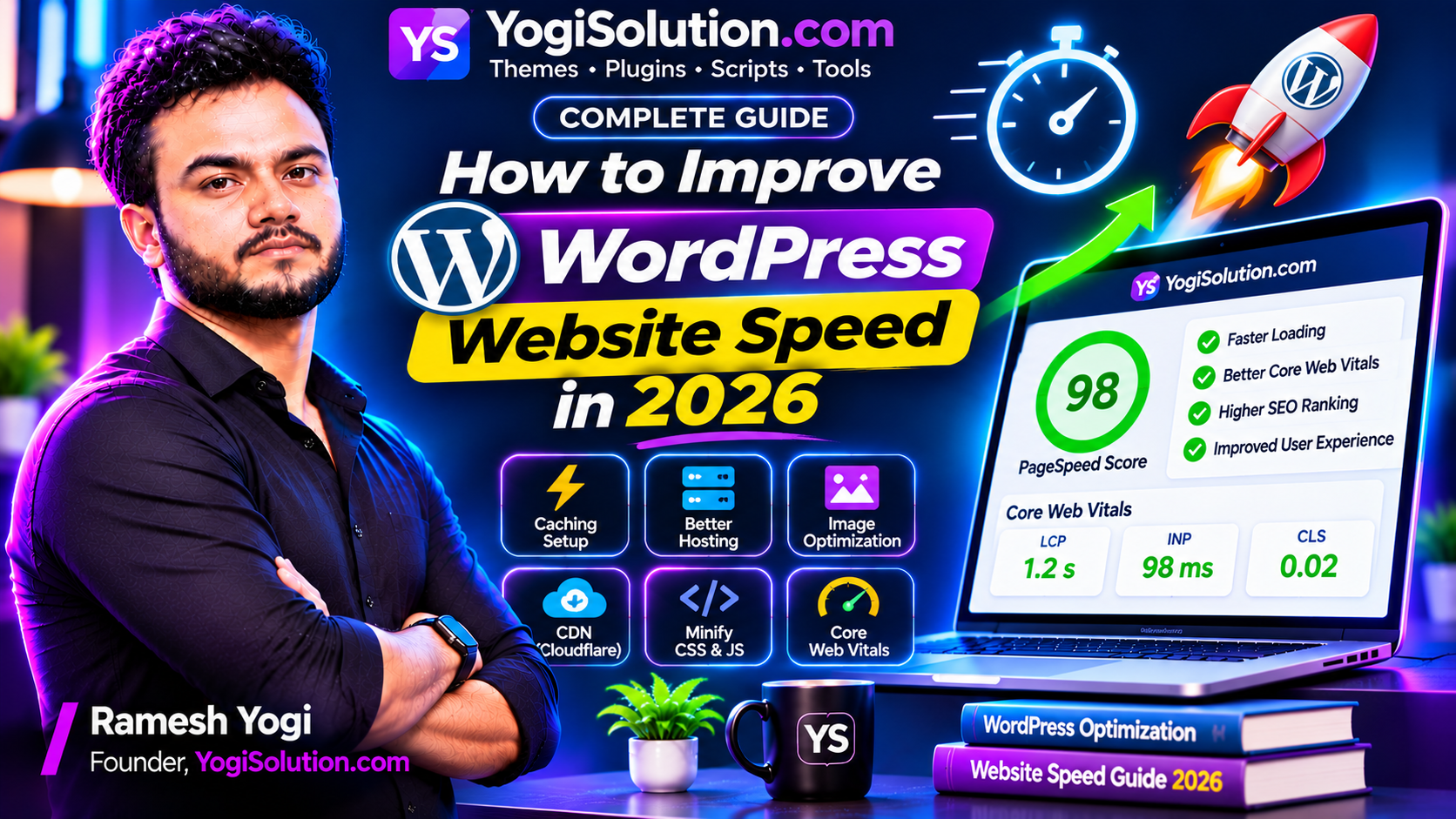
Website speed is one of the most important factors in creating a good experience for visitors. When a website loads slowly, visitors may leave before reading an article, exploring a product, or completing an action.
WordPress makes it easy to build websites, but performance depends on several factors, including hosting, themes, plugins, images, caching, and server configuration.
The good news is that you do not need to rebuild your entire website to make it faster. By identifying performance problems and applying the right optimization techniques, you can significantly improve your WordPress website.
In this guide, we will explain how to improve WordPress website speed in 2026 using practical techniques suitable for bloggers, developers, and business owners.
1. Test Your Website Speed Before Making Changes
Before optimizing your website, understand how it currently performs.
Testing first helps you identify problems and compare results after making improvements.
Some useful performance testing tools include:
Google PageSpeed Insights
It analyzes individual webpages and provides mobile and desktop performance reports. It also highlights opportunities for improvement.
GTmetrix
It provides performance reports, loading information, and recommendations for identifying possible bottlenecks.
Google Search Console
Its Core Web Vitals report helps you understand real-world performance across groups of website URLs.
Start by testing your homepage and a few important article pages. Record the results so you can compare them after optimization.
Useful tools:
2. Choose Fast and Reliable WordPress Hosting
Your hosting environment plays an important role in website performance.
Even if your theme and plugins are optimized, slow server response times can affect the overall loading experience.
When selecting hosting, consider:
- CPU and RAM resources.
- SSD or NVMe storage.
- PHP version support.
- Database performance.
- Server location.
- Available caching technologies.
- Backup and security features.
- Traffic capacity and scalability.
For a small blog, quality shared hosting may be sufficient. For websites with growing traffic or demanding applications, managed WordPress hosting or a properly configured VPS may provide more control.
If most of your visitors are in a particular country, consider server location and CDN coverage when planning your infrastructure.
Do not choose hosting based only on advertised specifications. Monitor actual resource usage and server response times.
3. Use a Lightweight WordPress Theme
Your WordPress theme controls the structure and appearance of your website.
Some themes include many animations, sliders, design libraries, and additional features that your website may not need.
A lightweight theme can reduce unnecessary resources and make your website easier to optimize.
Look for a theme that offers:
- Clean and efficient code.
- Responsive layouts.
- Minimal unnecessary JavaScript.
- Optimized CSS.
- Good typography.
- Simple navigation.
- Compatibility with modern WordPress features.
Avoid using multiple page builders or design systems unless your project genuinely needs them.
A visually attractive website does not have to be complicated. A simple design can provide an excellent user experience.
4. Optimize Images Before Uploading Them
Images are often a significant part of a webpage’s total download size.
Uploading large images directly from a camera or design application can increase loading time.
Follow these image optimization practices:
Resize images
Use dimensions appropriate for the space where the image will appear. A small thumbnail does not need a full-resolution image.
Compress images
Reduce file size while maintaining acceptable visual quality.
Use modern formats
WebP and AVIF can help reduce image size when supported by your image workflow and website setup.
Use lazy loading
Images below the visible portion of a page can often be loaded when visitors scroll closer to them.
However, avoid lazy-loading the main image that is responsible for the page’s Largest Contentful Paint. It may need to load earlier.
Specify image dimensions
Set width and height attributes or reserve the correct aspect ratio to reduce unexpected layout movement.
For WordPress, you can use an image optimization plugin or optimize images before uploading them.
5. Enable Proper Caching
Caching is one of the most effective ways to improve WordPress performance.
Normally, WordPress processes requests using PHP and database queries to generate pages. Page caching can store the generated HTML so that repeat requests do not need to perform the same work again.
Popular caching options include:
- LiteSpeed Cache.
- WP Super Cache.
- W3 Total Cache.
- WP Rocket.
Choose a solution that matches your hosting environment.
For example, LiteSpeed Cache offers server-level caching capabilities when used with compatible LiteSpeed infrastructure. Other caching solutions may be more suitable for different server configurations.
You should also consider:
Browser caching: Allows visitors’ browsers to reuse static files such as images, CSS, and JavaScript.
Object caching: Stores frequently requested database results to reduce repeated database work.
Page caching: Stores generated webpage content to reduce PHP and database processing.
Do not activate multiple page-caching plugins without a clear configuration plan. Overlapping caching systems can create conflicts and unexpected behavior.
6. Use a Content Delivery Network (CDN)
A Content Delivery Network distributes copies of static website resources across multiple locations.
When visitors request files such as images, CSS, or JavaScript, a CDN can serve them from a nearby network location instead of always requesting them from your main hosting server.
Benefits may include:
- Faster delivery of static files.
- Reduced load on the origin server.
- Better performance for geographically distributed visitors.
- Improved handling of traffic spikes.
Cloudflare is one widely used CDN and website infrastructure provider.
For a content website, a CDN can be particularly helpful when visitors come from multiple countries.
However, a CDN does not automatically fix slow PHP execution, database queries, or poorly optimized page templates. Those issues need to be addressed separately.
7. Remove Unnecessary WordPress Plugins
Plugins provide additional functionality, but poorly optimized or unnecessary plugins can affect performance.
Some plugins load extra JavaScript, CSS, external resources, or database queries on pages where those features are not needed.
Review your installed plugins regularly.
Follow these practices:
- Remove plugins you no longer use.
- Avoid installing multiple plugins with overlapping features.
- Choose actively maintained plugins.
- Check plugin performance when a page becomes slow.
- Keep essential plugins updated.
- Test major changes on a staging website.
Remember that plugin count alone does not determine website speed. Plugin quality and what each plugin does are more important.
8. Optimize CSS and JavaScript Files
CSS controls how your website looks, while JavaScript provides interactive functionality.
Large or unnecessary files can delay page rendering and user interactions.
Some optimization techniques include:
Minification
Removes unnecessary spaces, comments, and formatting from CSS and JavaScript files.
Defer non-critical JavaScript
Allows certain scripts to execute later rather than delaying initial page rendering.
Delay third-party scripts
Some analytics, chat widgets, advertising scripts, and social media embeds can add loading overhead.
Remove unused CSS
Unused styles can increase the amount of data the browser needs to process.
Be careful when enabling these options. Aggressive optimization can break navigation menus, sliders, forms, or other website features.
Test important pages after every major change.
9. Optimize Your WordPress Database
WordPress stores website content, settings, metadata, and other information in its database.
Over time, unnecessary data can accumulate.
Examples include:
- Old post revisions.
- Expired transients.
- Spam comments.
- Trashed content.
- Unnecessary plugin data.
Database optimization tools can help identify and clean up certain types of unnecessary records.
Before performing database cleanup, create a backup.
Avoid deleting database tables simply because a plugin is no longer active. Some plugins may store important settings or user data that you still need.
For larger websites, database query performance and proper indexing may require technical investigation.
10. Optimize Core Web Vitals
Core Web Vitals are Google’s metrics for measuring important aspects of real-world user experience.
There are three primary metrics:
| Metric | Meaning | Good Target |
|---|---|---|
| LCP | Loading performance | 2.5 seconds or less |
| INP | Interaction responsiveness | Less than 200 milliseconds |
| CLS | Visual stability | Less than 0.1 |
Improve LCP
Optimize the main visible image, reduce server response time, and avoid delaying important content.
Improve INP
Reduce unnecessary JavaScript, avoid long-running tasks, and improve the responsiveness of interactive elements.
Improve CLS
Reserve space for images, advertisements, embeds, and other elements that may load after the initial page content.
These targets are measured using real-world user data. A single laboratory test does not represent every visitor’s experience.
11. Optimize Advertisements and Third-Party Scripts
If your website uses Google AdSense or other advertising services, advertisements can affect loading performance.
Third-party advertising scripts may require additional network requests and processing.
You can improve the overall experience by:
- Avoiding excessive ad placements.
- Reserving space for advertisement containers.
- Using responsive ad formats where appropriate.
- Avoiding unnecessary third-party widgets.
- Testing pages with advertisements enabled.
- Keeping ads separate from navigation and download controls.
Do not remove or modify required advertising code in ways that violate the advertising provider’s policies.
The goal is to balance monetization with a comfortable reading experience.
12. Keep WordPress, PHP, Themes, and Plugins Updated
Outdated software can contain bugs, security issues, and performance limitations.
Keep your website’s software maintained:
- Update WordPress core.
- Use a supported PHP version compatible with your plugins and theme.
- Update themes and plugins.
- Remove unused themes and plugins.
- Monitor server resources.
- Review error logs when performance problems occur.
For developers managing their own VPS, enabling PHP OPcache can also reduce repeated PHP compilation work.
Always test important updates before applying them to a critical production website.
13. WordPress Speed Optimization Checklist
Use this checklist when optimizing your website:
- Test website performance before making changes.
- Choose reliable hosting.
- Use a lightweight WordPress theme.
- Compress and resize images.
- Use modern image formats.
- Enable appropriate page caching.
- Configure browser caching.
- Use a CDN when beneficial.
- Remove unnecessary plugins.
- Optimize CSS and JavaScript.
- Review database performance.
- Improve Core Web Vitals.
- Optimize advertisement placements.
- Keep WordPress and PHP updated.
- Test important pages after optimization.
Frequently Asked Questions
1. How can I make my WordPress website faster?
Start by testing your website, optimizing images, using reliable hosting, enabling appropriate caching, and removing unnecessary scripts and plugins.
2. Which caching plugin is best for WordPress?
It depends on your server environment and requirements. LiteSpeed Cache is useful on compatible LiteSpeed servers, while WP Super Cache, W3 Total Cache, and WP Rocket are other options to consider.
3. Does a faster website rank higher on Google?
Page experience and Core Web Vitals are considered by Google’s ranking systems, but good performance scores do not guarantee higher rankings. Content relevance and quality remain important.
4. Does Cloudflare make WordPress faster?
Cloudflare can improve the delivery of static resources through its CDN and provide other performance features. However, it cannot automatically fix every server-side or WordPress application problem.
5. How many plugins should I use on WordPress?
There is no universal limit. Use the plugins your website needs, choose reliable options, and avoid overlapping functionality.
6. Does image compression improve website speed?
Yes. Smaller image files generally require less data to download, which can improve loading performance, especially on slower internet connections.
7. How often should I test my WordPress website speed?
Test after major theme, plugin, hosting, or design changes. Also review real-user performance reports regularly to identify problems as your website grows.
Conclusion
Improving WordPress website speed requires attention to more than just one plugin or setting. Hosting, caching, images, themes, plugins, server configuration, and third-party scripts all contribute to performance.
Start by measuring your website, identify its biggest problems, and apply improvements one step at a time.
A fast WordPress website provides a better experience for visitors, makes content easier to access, and creates a stronger technical foundation for long-term growth.